How to Detect Mouse Clicks (Right Click) in Minecraft
Minecraft Java 1.21.5+ and 26+ – Right Click Detection Using Datapacks and Advancements
Want to detect right click (mouse clicks) in Minecraft to create special weapons, abilities, spells, or RPG mechanics?
In this tutorial, you’ll learn how to detect right clicks using a datapack, advancements and functions,
allowing you to run commands whenever the player clicks while holding a specific item.
Works in Minecraft Java Edition 1.21.5+ and newer versions like 26+.
Step 1: Let's start by opening the Minecraft folder. To open it, press the Windows key and R at the same time, or if you prefer, just type Run in the search bar
I don't know how to open it on Mac or Linux, so check how to open the folder on those systems somewhere else
Continuing, when the Run window opens, type %appdata% and press Enter
Look for the .minecraft folder (it is usually at the top) and then open the saves folder
Choose the world folder where you want to set up the right mouse click detection
Your world folder will have many folders, look for datapacks and open it
Step 2: When you get to the datapacks folder, it might be empty. Because of that, I already prepared the necessary folders to make things easier
Now download here this ready folder and drag it into datapacks, then extract the .zip file
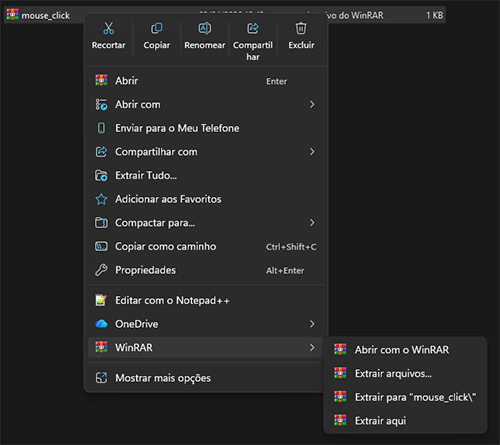
I chose to extract it using WinRAR, and I recommend installing it on your computer
After extracting, delete the .zip file
You can rename this folder however you want. Notice that inside it there are other folders, which I will explain better
But before that, skip to step 4 if you already want to test it in your world
Step 3: After opening the data folder, you can rename the comandos folder to anything you want
Inside the comandos folder, you will find the function folder. This is where the functions are located, and you will notice that I left a ready function file
When you open the right_click function, keep the first command because it is very important so we can click and run the function more than once
Or place this command at the top of a function you already created
Notice that in this command we have comandos (the folder name before this one, if you didn't rename it) : (the file name inside the advancement folder)
If you changed the name of the comandos folder, replace the part before the :
I will explain more about the file inside the advancement folder in the next step
If you have never created a function, check out this tutorial by clicking here which explains functions
Step 4: Notice that next to the function folder we also have the advancement folder
And inside that folder, we have the click file. You can open it using Notepad or Notepad++
Inside that file, choose the id of the item you want to detect the click with
I chose the iron sword, but it can be any item. There is also a custom tag
Scrolling down, you will find the function that will run after the click. Replace it with the name of the function you want to execute
After that, we can test it. If you did this while your world was open, type /reload in the chat and press Enter to reload the world files
Now let's get the item we selected in the file using a custom give command, see below
give @p minecraft:iron_sword[food={nutrition:0,saturation:0.0,can_always_eat:true},minecraft:consumable={consume_seconds:1000000},minecraft:custom_data={Custom:1b},minecraft:custom_name="Sword"]
Just replace it with the item name you chose and test it!